라이브러리를 import 하는 방법도 있다
turtle import
예시로 파이썬에서 제공하는 그래픽 라이브러리인 turtle을 import 해보겠다
파이썬 홈페이지
Docs 로 이동해서 turtle을 검색해본다
아래의 url은 검색결과이다
https://docs.python.org/3/library/turtle.html?highlight=turtle#module-turtle
해당 코드를 복사한다
# 파이썬 제공 그래픽 라이브러리(모듈들의 집합)
# turtle로 도형 그리기

from turtle import *
color('red', 'yellow')
begin_fill()
while True:
    forward(200)
    left(170)
    if abs(pos()) < 1:
        break
end_fill()
done()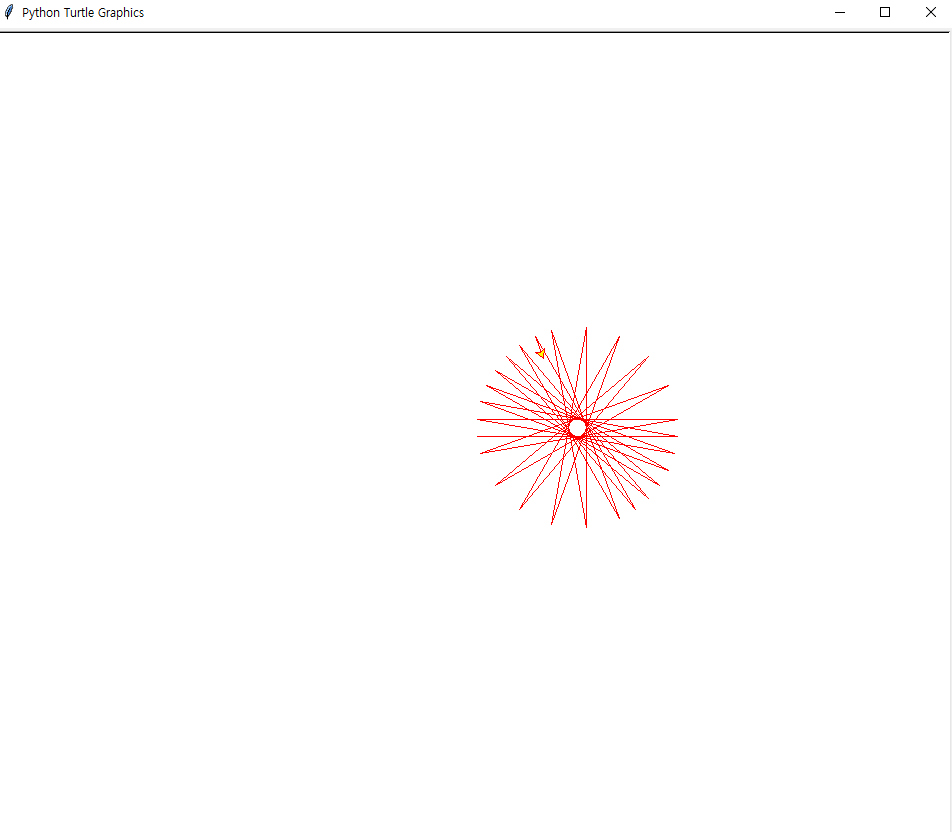
pygame istall
방법1
pygame 사이트 다양한 게임이 오픈소스로 무료로 제공된다
https://www.pygame.org/wiki/GettingStarted
-명령어-
pip install pygame
conda install pygame
방법2
방법1이 안되는 경우 직접 파일을 다운받는다
파이썬 관련 모듈 다운로드
https://www.lfd.uci.edu/~gohlke/pythonlibs/
ctrl f 로 pygame을 검색한다

설치하기
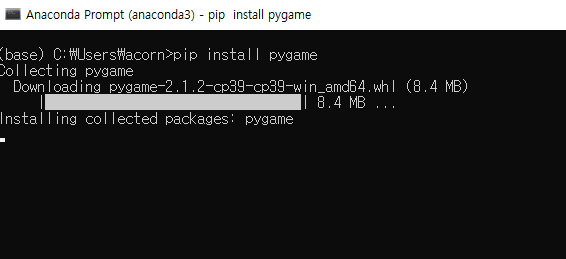
anaconda prompt 로 이동하여 명령어를 입력한다
pip install pygame
코드
# pygame : 제3자 모듈 사용
# 아나콘다 프롬포트에서 pip install pygame
import pygame
#추억의 벽돌 게임 -----------------

import math

import pygame


# Define some colors

black = (0, 0, 0)

white = (255, 255, 255)

yellow = (255, 255, 0)


# Size of break-out blocks

block_width = 23

block_height = 15


class Block(pygame.sprite.Sprite):

    """This class represents each block that will get knocked out by the ball

    It derives from the "Sprite" class in Pygame """


    def __init__(self, color, x, y):

        """ Constructor. Pass in the color of the block,

            and its x and y position. """


        # Call the parent class (Sprite) constructor

        super().__init__()


        # Create the image of the block of appropriate size

        # The width and height are sent as a list for the first parameter.

        self.image = pygame.Surface([block_width, block_height])


        # Fill the image with the appropriate color

        self.image.fill(color)


        # Fetch the rectangle object that has the dimensions of the image

        self.rect = self.image.get_rect()


        # Move the top left of the rectangle to x,y.

        # This is where our block will appear..

        self.rect.x = x

        self.rect.y = y


class Ball(pygame.sprite.Sprite):

    """ This class represents the ball

        It derives from the "Sprite" class in Pygame """

    # Speed in pixels per cycle

    speed = 5.0


    # Floating point representation of where the ball is

    x = 0.0

    y = 180.0


    # Direction of ball (in degrees)

    direction = 200


    width = 10

    height = 10


    # Constructor. Pass in the color of the block, and its x and y position

    def __init__(self):

        # Call the parent class (Sprite) constructor

        super().__init__()


        # Create the image of the ball

        self.image = pygame.Surface([self.width, self.height])


        # Color the ball

        self.image.fill(white)


        # Get a rectangle object that shows where our image is

        self.rect = self.image.get_rect()


        # Get attributes for the height/width of the screen

        self.screenheight = pygame.display.get_surface().get_height()

        self.screenwidth = pygame.display.get_surface().get_width()


    def bounce(self, diff):

        """ This function will bounce the ball

            off a horizontal surface (not a vertical one) """


        self.direction = (180 - self.direction) % 360

        self.direction -= diff


    def update(self):

        """ Update the position of the ball. """

        # Sine and Cosine work in degrees, so we have to convert them

        direction_radians = math.radians(self.direction)


        # Change the position (x and y) according to the speed and direction

        self.x += self.speed * math.sin(direction_radians)

        self.y -= self.speed * math.cos(direction_radians)


        # Move the image to where our x and y are

        self.rect.x = self.x

        self.rect.y = self.y


        # Do we bounce off the top of the screen?

        if self.y <= 0:

            self.bounce(0)

            self.y = 1


        # Do we bounce off the left of the screen?

        if self.x <= 0:

            self.direction = (360 - self.direction) % 360

            self.x = 1


        # Do we bounce of the right side of the screen?

        if self.x > self.screenwidth - self.width:

            self.direction = (360 - self.direction) % 360

            self.x = self.screenwidth - self.width - 1


        # Did we fall off the bottom edge of the screen?

        if self.y > 600:

            return True

        else:

            return False


class Player(pygame.sprite.Sprite):

    """ This class represents the bar at the bottom that the player controls. """


    def __init__(self):

        """ Constructor for Player. """

        # Call the parent's constructor

        super().__init__()


        self.width = 75

        self.height = 15

        self.image = pygame.Surface([self.width, self.height])

        self.image.fill((white))


        # Make our top-left corner the passed-in location.

        self.rect = self.image.get_rect()

        self.screenheight = pygame.display.get_surface().get_height()

        self.screenwidth = pygame.display.get_surface().get_width()


        self.rect.x = 0

        self.rect.y = self.screenheight-self.height


    def update(self):

        """ Update the player position. """

        # Get where the mouse is

        pos = pygame.mouse.get_pos()

        # Set the left side of the player bar to the mouse position

        self.rect.x = pos[0]

        # Make sure we don't push the player paddle

        # off the right side of the screen

        if self.rect.x > self.screenwidth - self.width:

            self.rect.x = self.screenwidth - self.width


# Call this function so the Pygame library can initialize itself

pygame.init()


# Create an 800x600 sized screen

screen = pygame.display.set_mode([600, 500])


# Set the title of the window

pygame.display.set_caption('Breakout')


# Enable this to make the mouse disappear when over our window

pygame.mouse.set_visible(0)


# This is a font we use to draw text on the screen (size 36)

font = pygame.font.Font(None, 36)


# Create a surface we can draw on

background = pygame.Surface(screen.get_size())


# Create sprite lists

blocks = pygame.sprite.Group()

balls = pygame.sprite.Group()

allsprites = pygame.sprite.Group()


# Create the player paddle object

player = Player()

allsprites.add(player)


# Create the ball

ball = Ball()

allsprites.add(ball)

balls.add(ball)


# The top of the block (y position)

top = 80


# Number of blocks to create

blockcount = 32


# --- Create blocks

# Five rows of blocks

for row in range(5):

    # 32 columns of blocks

    for column in range(0, blockcount):

        # Create a block (color,x,y)

        block = Block(yellow, column * (block_width + 2) + 1, top)

        blocks.add(block)

        allsprites.add(block)

    # Move the top of the next row down

    top += block_height + 2


# Clock to limit speed

clock = pygame.time.Clock()


# Is the game over?

game_over = False


# Exit the program?

exit_program = False


# Main program loop

while exit_program != True:

    # Limit to 30 fps

    clock.tick(30)


    # Clear the screen

    screen.fill(black)


    # Process the events in the game

    for event in pygame.event.get():

        if event.type == pygame.QUIT:

            exit_program = True


    # Update the ball and player position as long

    # as the game is not over.

    if not game_over:

        # Update the player and ball positions

        player.update()

        game_over = ball.update()


    # If we are done, print game over

    if game_over:

        text = font.render("Game Over", True, white)

        textpos = text.get_rect(centerx=background.get_width()/2)

        textpos.top = 300

        screen.blit(text, textpos)


    # See if the ball hits the player paddle

    if pygame.sprite.spritecollide(player, balls, False):

        # The 'diff' lets you try to bounce the ball left or right

        # depending where on the paddle you hit it

        diff = (player.rect.x + player.width/2) - (ball.rect.x+ball.width/2)


        # Set the ball's y position in case

        # we hit the ball on the edge of the paddle

        ball.rect.y = screen.get_height() - player.rect.height - ball.rect.height - 1

        ball.bounce(diff)


    # Check for collisions between the ball and the blocks

    deadblocks = pygame.sprite.spritecollide(ball, blocks, True)


    # If we actually hit a block, bounce the ball

    if len(deadblocks) > 0:

        ball.bounce(0)


        # Game ends if all the blocks are gone

        if len(blocks) == 0:

            game_over = True


    # Draw Everything

    allsprites.draw(screen)


    # Flip the screen and show what we've drawn

    pygame.display.flip()


pygame.quit()'python' 카테고리의 다른 글
| class - 개요 (0) | 2022.10.07 |
|---|---|
| module - opencv (0) | 2022.10.06 |
| module - 사용자 작성 모듈 (0) | 2022.10.06 |
| module - 표준모듈 (0) | 2022.10.06 |
| 재귀함수(Recursive function), factorial (0) | 2022.10.06 |

